Prerequisites
Before you begin, make sure you have:Claude Pro/Team Account
Connectors require a Claude Pro or Team subscription
Padel API Token
Get your token from the API Tokens page
Installation Steps
1
Open Claude Settings
Click on your profile icon in the bottom-left corner of Claude and select Settings from the menu.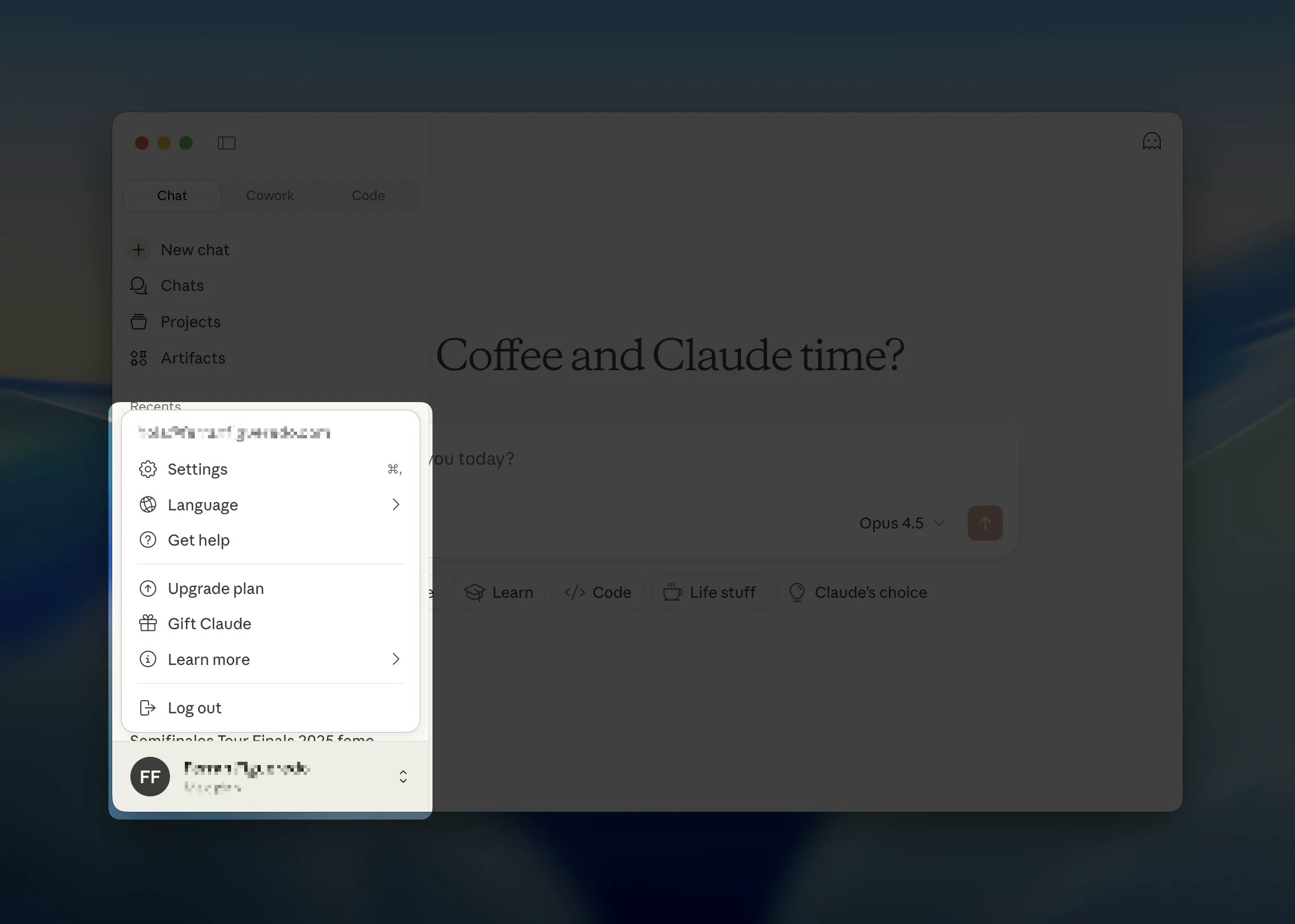
2
Navigate to Connectors
In the Settings panel, click on Connectors in the left sidebar. Then click the Add custom connector button.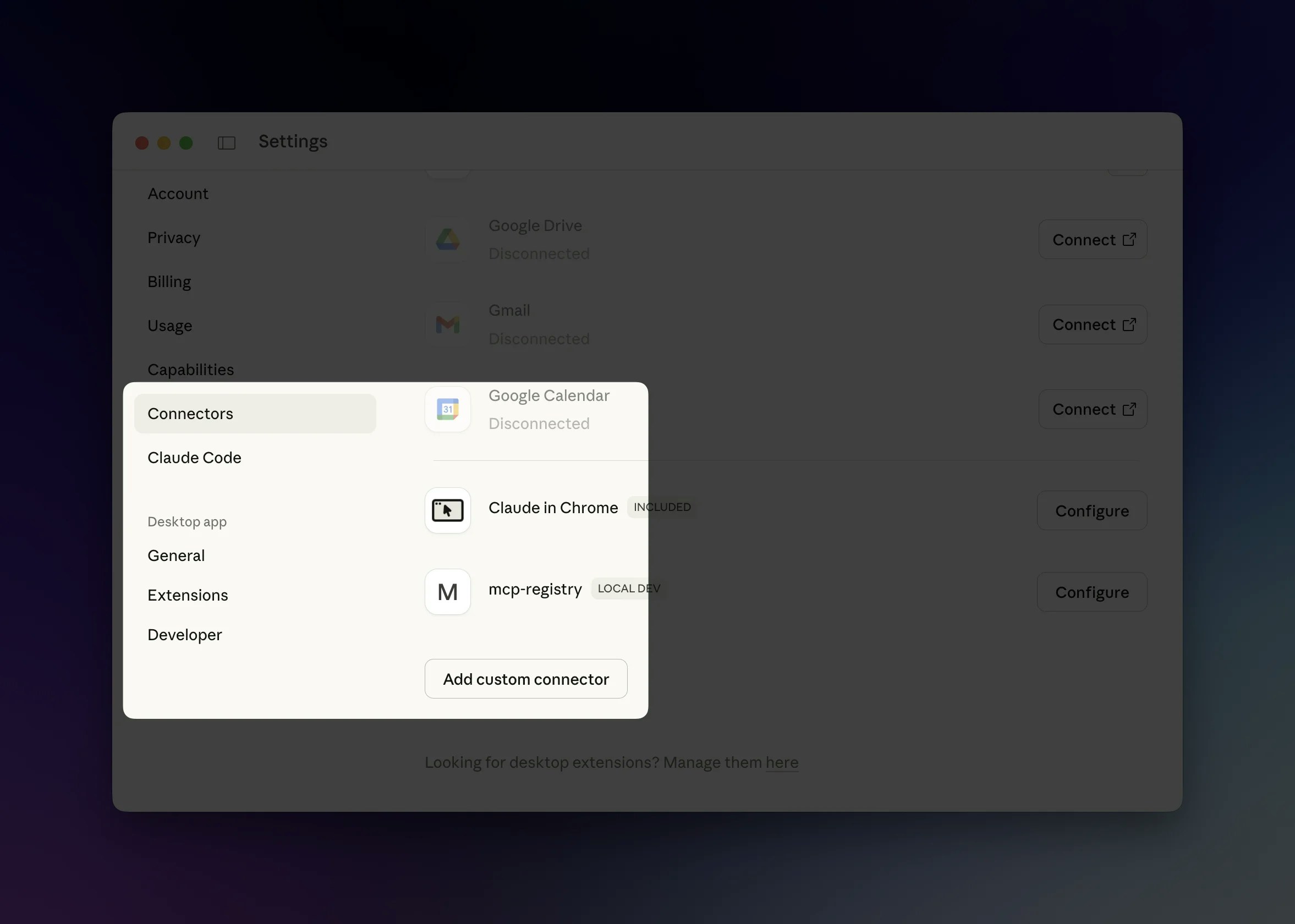
3
Add Padel Analyst
In the “Add custom connector” dialog, enter the following details:
Replace 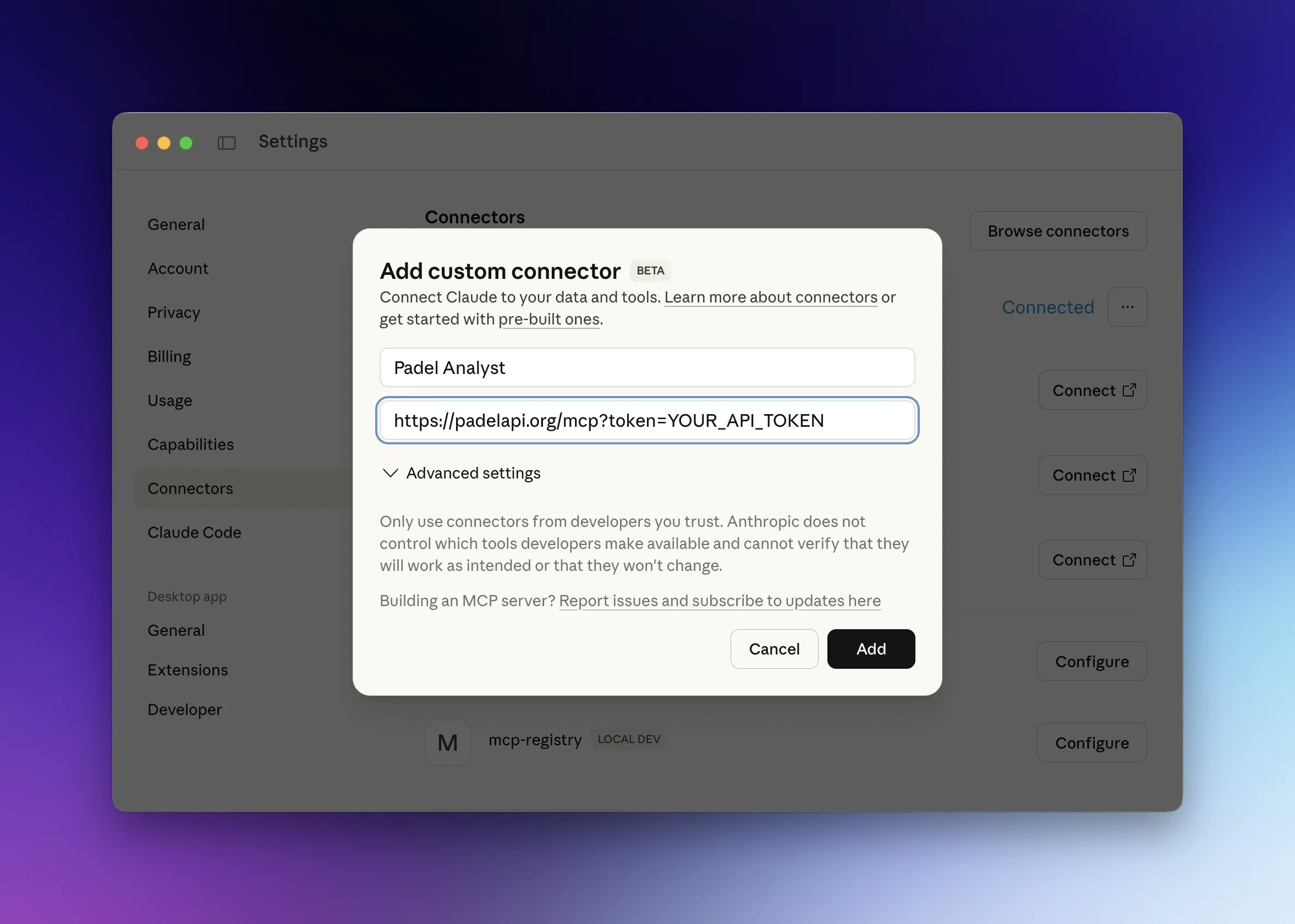
| Field | Value |
|---|---|
| Name | Padel Analyst |
| URL | https://padelapi.org/mcp?token=YOUR_API_TOKEN |
YOUR_API_TOKEN with your actual API token from the API Tokens page.Click Add to save the connector.4
Configure Permissions (Optional)
After adding the connector, you can configure tool permissions. Click on Padel Analyst in your connectors list to see all available tools.Select Always allow from the dropdown to skip permission prompts for each tool, or leave the default settings to approve tools individually.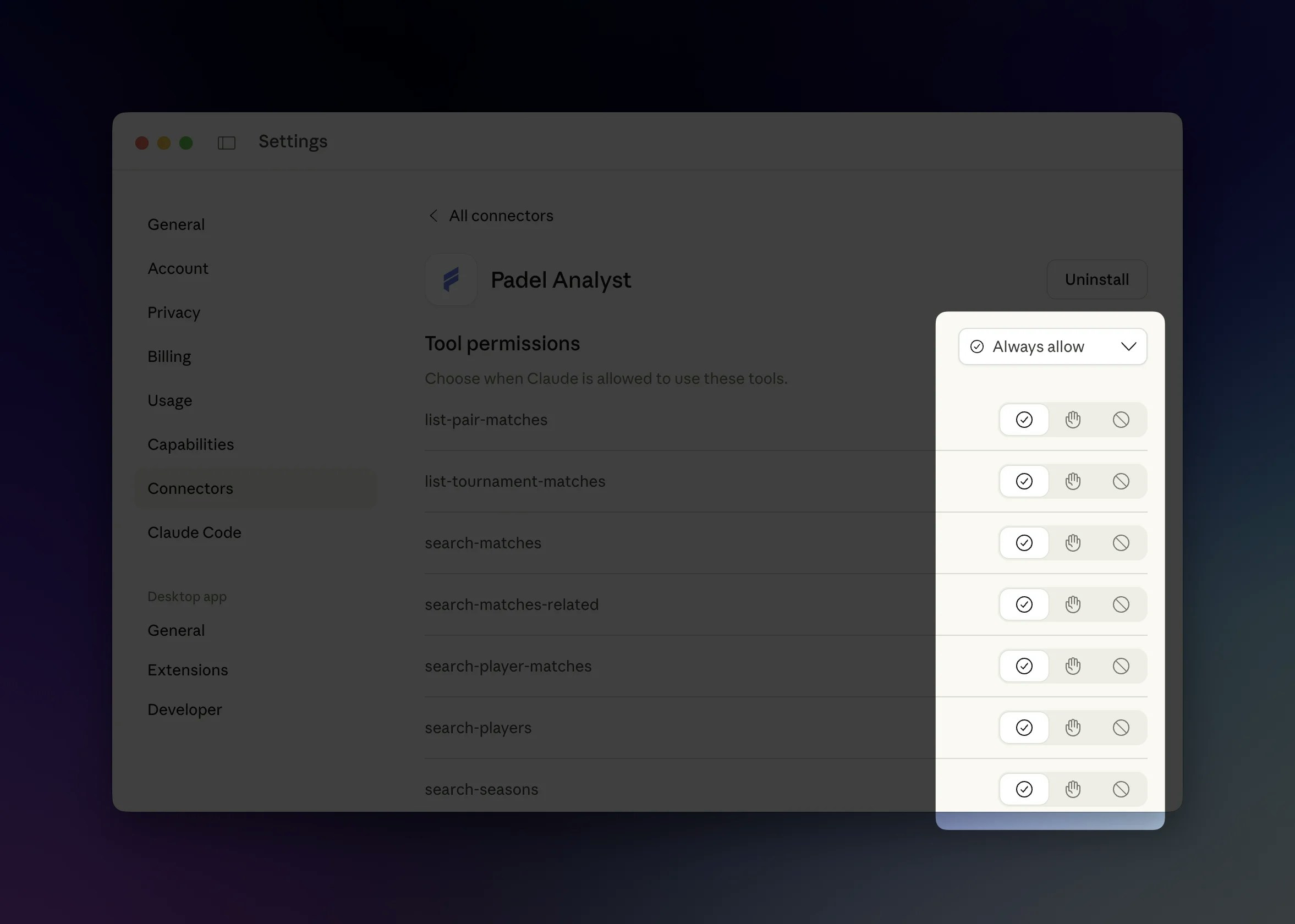
5
Start Using Padel Analyst
In any chat, click the + button and hover over Add from Padel Analyst to enable the connector. Make sure the Padel Analyst toggle is turned on.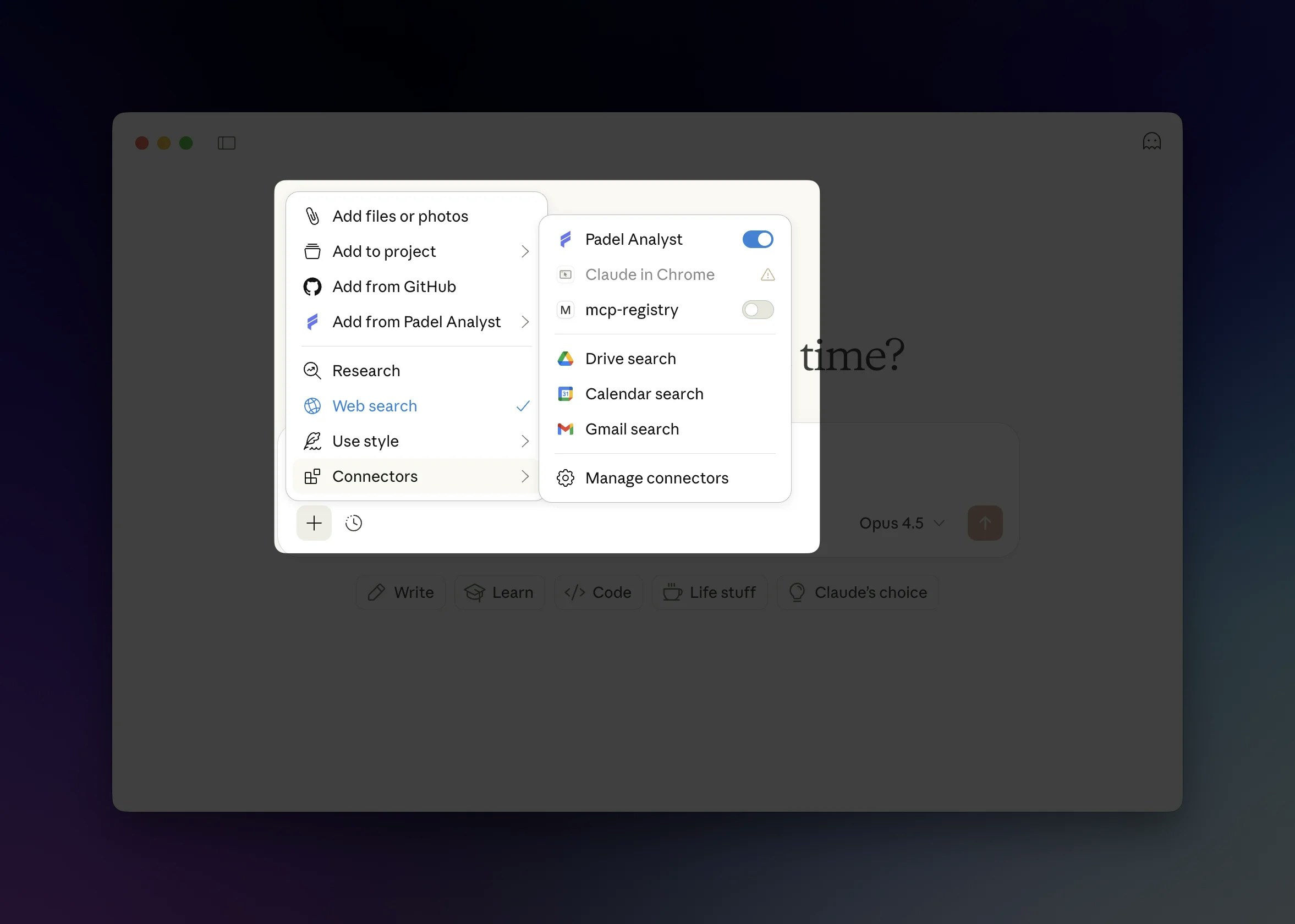
Using Padel Analyst
Once installed, you can ask Claude questions about professional padel. When Claude needs to fetch data, you’ll see a permission request (unless you enabled “Always allow”).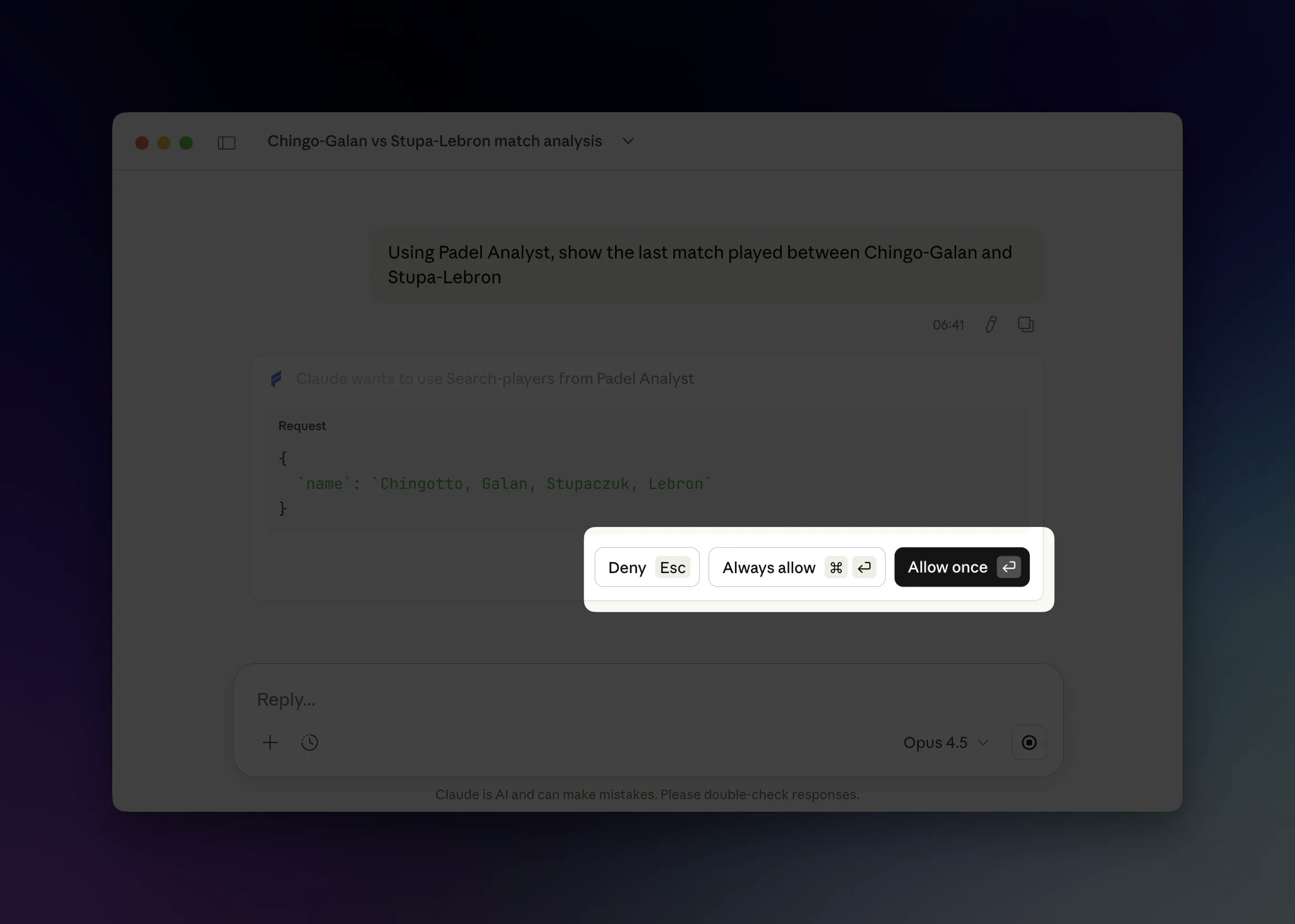
Example Response
Here’s an example of Claude analyzing a match using Padel Analyst: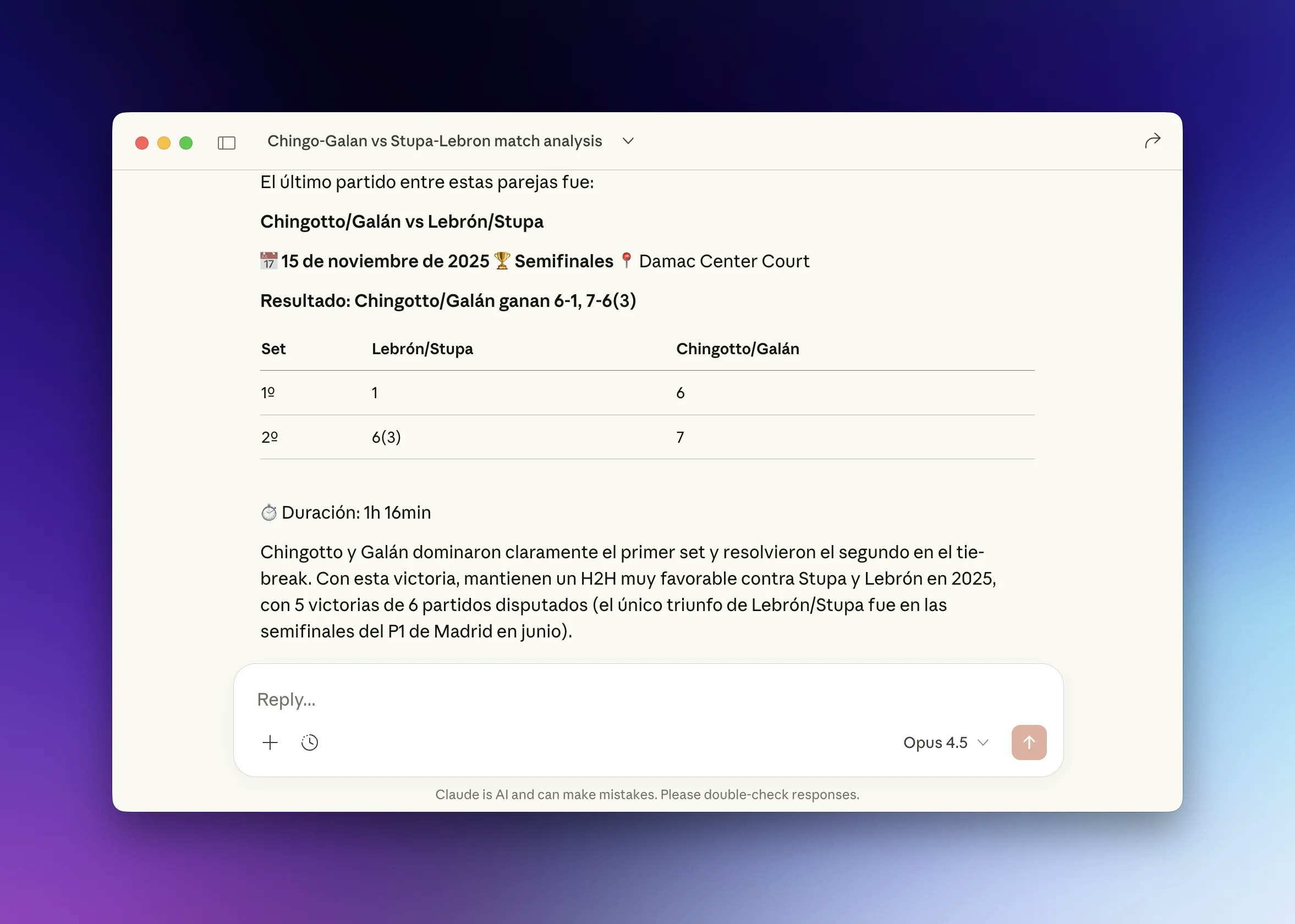
Example Questions
Try asking Claude questions like:- “Who won the last Premier Padel Major?”
- “Show me the head-to-head between Lebron/Galan and Coello/Tapia”
- “What are Arturo Coello’s statistics this season?”
- “List all P1 tournaments in 2025”
- “Simulate a match between the top two ranked pairs”
Troubleshooting
Connector not appearing
Connector not appearing
Make sure you have a Claude Pro or Team subscription. Free accounts don’t have access to custom connectors.
Authentication errors
Authentication errors
Verify that your API token is correct and that you have an active Analyst plan subscription.
Tools not working
Tools not working
Check that the connector is enabled in your chat (the toggle should be on). Also verify your token hasn’t expired.